| Database Toolbox | |
A subquery restricts query results by using values found in other tables. For example, use a subquery if you want to know sales volumes for the building blocks product, but the sales volumes and product descriptions are not in the same table. The subquery uses a field common to both tables to relate the tables.
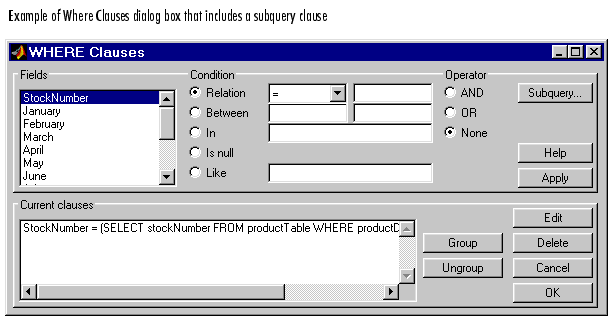
In Advanced query options, click Where; the Where Clauses dialog box appears. In the Where Clauses dialog box, click Subquery; the Subquery dialog box appears.
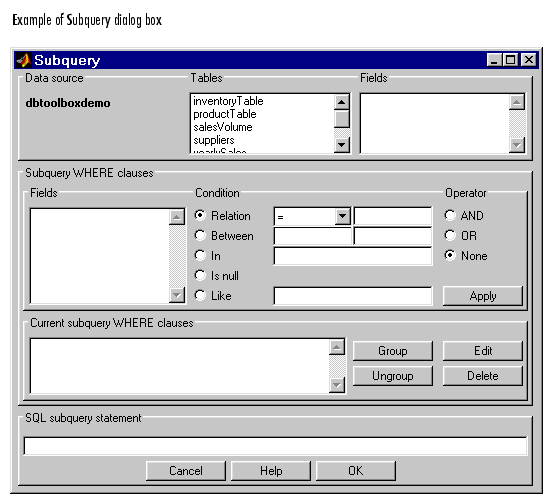
The subquery appears in the Current subquery Where clauses area and in the SQL Subquery Statement area.
Subquery Where Clauses
In the Subquery Where clauses area of the Subquery dialog box, specify the associations between fields that are in different tables.
The subquery appears in the Current subquery Where clauses area and in the SQL subquery statement area.
Example Using Subquery
This example retrieves sales volumes for the product whose description is Building Blocks. The salesVolume table has sales volumes and a stock number field, but not a product description field. Another table, productTable, has the product description and the stock number, but not the sales volumes. The subquery looks at productTable to get the stock number for the product whose description is Building Blocks. The main query gets the sales volume values for that stock number from the salesVolume table.
This begins creating the subquery to retrieve stockNumber from productTable; it appears in the SQL subquery statement area.
productDescription is Building Blocks.productDescription from Fields.
=.
'Building Blocks'
(include the single quotation marks).
The clause appears in the Current subquery Where clauses area and updates the SQL subquery statement.
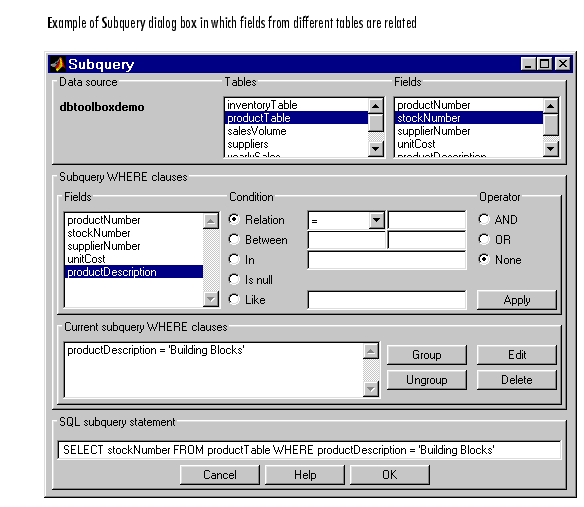
This closes the Where Clauses dialog box and updates the SQL statement in the Visual Query Builder dialog box.
The results show sales volumes for the item whose product description is Building Blocks, although the product description itself is not included in the results.
You can select multiple tables in the Visual Query Builder dialog box and create a Where clause to perform the same query. That method also allows you to include the product description in the results. See Example Creating Queries for Results from Multiple Tables for more information.
See Also
| | Current clauses | Group By | |