| Wavelet Toolbox | |
Using the Mouse
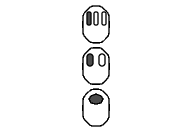
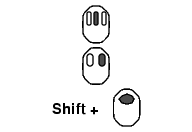
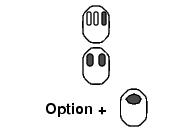
The Wavelet Toolbox uses three distinct types of mouse control.
| Note The functionality of the Middle Mouse Button and the Right Mouse Button can be inverted depending on the platform. |
Making Selections and Activating Controls
Most of the work you do with the Wavelet Toolbox graphical tools involves making selections and activating controls. You do this using the left (or only) mouse button.
Translating Plots
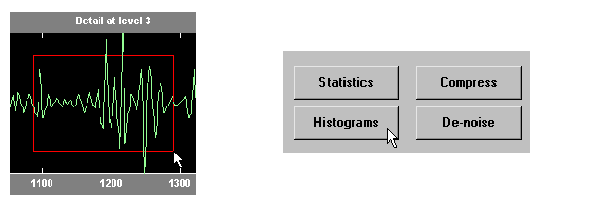
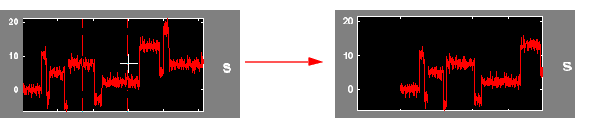
By holding down the right mouse button (or its equivalent on a one- or two-button mouse), you can move the mouse to draw a rectangle in either an horizontal or vertical orientation. Releasing the middle mouse button then causes the plot to shift horizontally (or vertically) by an amount proportional to the width (or height, respectively) of the rectangle.
Displaying Position-Dependent Information
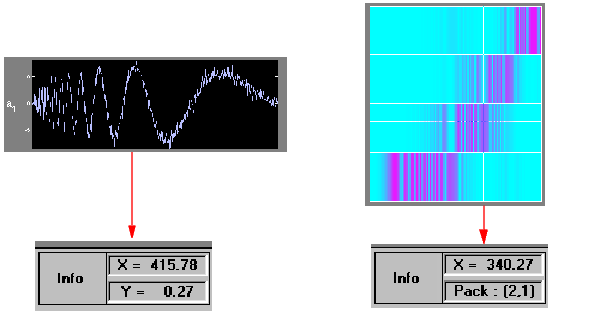
When you hold down the middle mouse button (or its equivalent on a one- or two-button mouse), a cross-hair cursor appears over the graph or plot. Position-dependent information also appears in the Info box located at the bottom center of the tool.
The type of information that appears depends on what tool you are using and on what plot your cursor is in.
| | Connectedness of Plots | Controlling the Colormap | |