| Requirements Management Interface |
  |
Viewing Requirements in the Navigator
Use the Navigator to see which objects have requirements associated with them.
Indication of Requirements
In the Navigator, you can see which nodes have requirements associated with them by the shading of the node's icons.
- Select Synchronize from the File menu in the Navigator so that the links you just made in DOORS are reflected in the Navigator.
This example shows that nodes for the N block in the valve timing subsystem and the positive edge to dual edge conversion subsystem are shaded, indicating they have DOORS requirements associated with them. The nodes in the positive edge to dual edge conversion subsystem are lightly shaded, indicating they belong to a subsystem that has requirements associated with it.
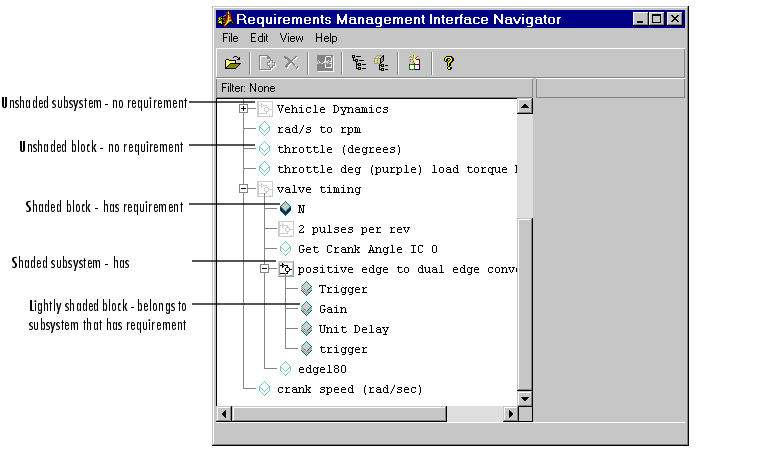
Figure 2-10: Navigator Showing Simulink Nodes That Have DOORS Requirements
The shading of a node's icon indicates whether or not it has associated requirements, as shown in the following table.
Table 2-1: Node Icons in Navigator and What They Represent
Node
|
Shading
|
What It Represents
|

|
Not shaded
|
Simulink subsystem with no requirements
|

|
Shaded
|
Simulink subsystem that has requirements
|

|
Lightly shaded
|
Simulink subsystem belonging to a subsystem that has requirements; subsystem itself has no requirements
|

|
Not shaded
|
Simulink block with no requirements
|

|
Shaded
|
Simulink block that has requirements
|

|
Lightly shaded
|
Simulink block belonging to a subsystem that has requirements; block itself has no requirements
|

|
Not shaded
|
Stateflow chart with no requirements
|

|
Shaded
|
Stateflow chart that has requirements
|

|
Lightly shaded
|
Stateflow chart belonging to a subsystem that has requirements; chart itself has no requirements
|

|
Not shaded
|
Stateflow state with no requirements
|

|
Shaded (with yellow)
|
Stateflow state that has requirements
|

|
Lightly shaded
|
Stateflow state belonging to a superstate, chart, or subsystem that has requirements; state itself does has no requirements
|

|
Not shaded
|
Stateflow transition with no requirements
|

|
Shaded (with blue)
|
Stateflow transition that has requirements
|

|
Lightly shaded
|
Stateflow transition belonging to a superstate, chart, or subsystem that has requirements; transition itself has no requirements
|

|
Not shaded
|
MATLAB M-file with no requirements
|

|
Shaded
|
MATLAB M-file that has requirements
|
- Select a node that has requirements associated with it. If the node contains other nodes, first click
 next to the node to expand it, and then select the specific node you want.
The surrogate exported module name (Document) and object identifier (ID) appear in the right pane of the Navigator.
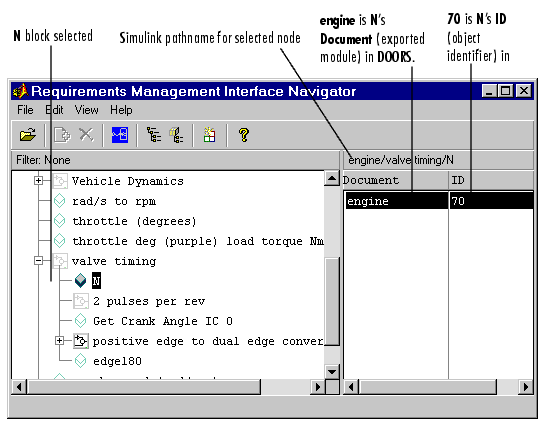
Figure 2-11: Selected Node with Requirement
| | Linking an Object to a DOORS Requirement | | Stateflow Charts and MATLAB M-Files with Requirements | |