| Using Simulink | |
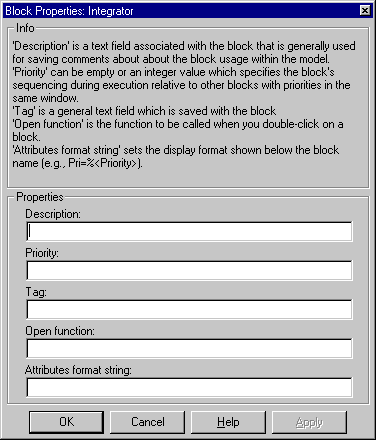
Use this dialog box to set a block's properties, i.e., parameters that it shares with all blocks. To display this dialog, select the block in the model window and then select the model window's Edit menu. The Edit menu includes an item BLOCK Properties, where BLOCK is the name of the block you selected, e.g., Constant Properties. Select this item to display the block's property dialog box.
The Block Properties dialog box lets you set some common block parameters.
The dialog box contains the following fields:
Description
Brief description of the block's purpose.
Priority
Execution priority of this block relative to other blocks in the model. See Assigning Block Priorities for more information.
Tag
A general text field that is saved with the block.
Open function
MATLAB (M-) function to be called when a user opens this block.
Attributes format string
Current value of the block's AttributesFormatString parameter. This parameter specifies which parameters to display beneath a block's icon. Appendix A describes the parameters that a block can have. You can use the AttributesFormatString parameter to display the values of specified parameters beneath the block's icon.
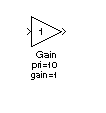
The attributes format string can be any text string that has embedded parameter names. An embedded parameter name is a parameter name preceded by %< and followed by >, for example, %<priority>. Simulink displays the attributes format string beneath the block's icon, replacing each parameter name with the corresponding parameter value. You can use line-feed characters (\n) to display each parameter on a separate line. For example, specifying the attributes format string
pri=%<priority>\ngain=%<Gain>
If a parameter's value is not a string or an integer, Simulink displays N/S (not supported) for the parameter's value. If the parameter name is invalid, Simulink displays "???".
| | Moving Blocks in a Model | Deleting Blocks | |