| Real-Time Windows Target | |
Entering Scope Properties for Signal Tracing
You enter or change scope properties to format the x-axis and y-axis in a Scope window. Other properties include the number of graphs in a one Scope window and whether the scope is connected to a continuous or discrete model.
If you entered the scope properties for running a simulation, you can skip this procedure. This information is repeated here if you did not run a simulation.
After you add a Scope block to your Simulink model, you can enter the scope properties for signal tracing:
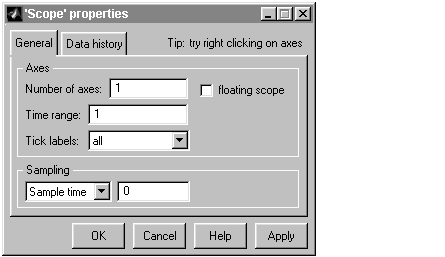
1 for a single graph. Do not select the floating scope check box.In the Time range box, enter the upper value for the time range. For
example, enter 1 second. From the Tick labels list, choose all.
From the Sampling list, choose Sample time and enter 0 in the text box.
Entering 0 indicates that Simulink evaluates this block as a continuous time
block. If you have discrete blocks in your model, enter the Fixed step size
you entered in the Simulation Parameters dialog box.
Your Scope properties dialog box will look similar to the figure shown below.
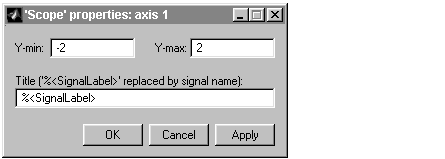
-2 and 2.| | Entering Simulation Parameters for Real-Time Workshop | Creating a Real-Time Application | |