

| Development Environment | |
Finding and Replacing Content Within Files
From the Current Directory browser, you can search for a specified string within files. If the file is open in the Editor, you can replace the specified string in a file.
Finding a Specified String Within a File
To search for a specified string in files:
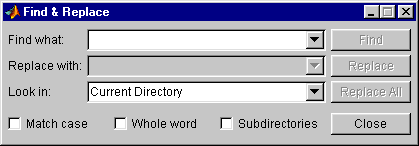
The Find & Replace dialog box appears. This provides the same features as the Find & Replace dialog box accessible from the Editor/Debugger.
Results appear in the lower part of the Find & Replace dialog box and include the filename, M-file line number, and content of that line.
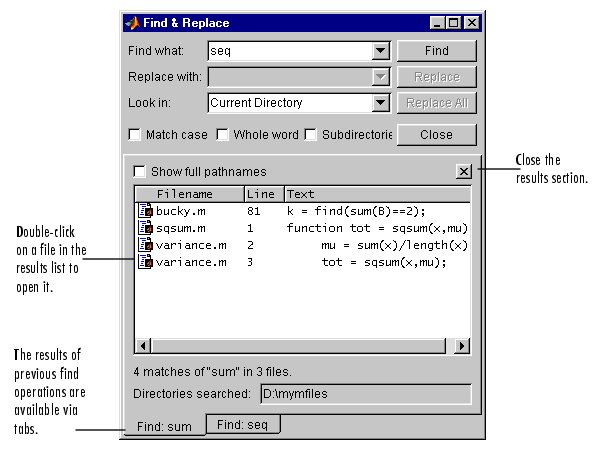
The M-file(s) opens in the Editor, scrolled to the line number shown in the results section of the Find & Replace dialog box.
Function Equivalent. Use lookfor to search for the specified string in the first line of help in all M-files on the search path.
| | Opening, Running, and Viewing the Content of Files | Replacing a Specified String Within Files | |
 in the Current Directory browser toolbar.